Monday, December 14, 2009

How to Install Chrome OS in Windows 7

Google unveiled Chrome OS in an event they demonstrated the upcoming cloud-based OS for the first time in public. Source code of Chrome OS was also released which folks over at gdgt have compiled in a ready-to-install .vmdk file. All you need now is a system running Windows, Linux or OS X with any of the virtualization software like VMware or VirtualBox installed to get Chrome OS running within minutes.

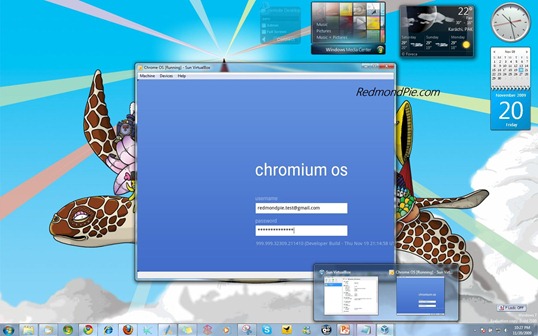
Chrome OS on Windows 7Chrome OS VM running under Windows 7. Click here to see the image in high resolution.

The following guide will help you install and run Google Chrome OS in VirtualBox under Windows 7. VMware Workstation can also be used to install and run Chrome OS VM in Windows 7.

Step 1: Download and install the latest version of VirtualBox for Windows 7. (download link is given below)

Step 2: Download .vmdk file for Google Chrome OS. (download link is given below)

Step 3: Start VirtualBox and click on “New” button. This will start a wizard that will help you create a new VM in VirtualBox.

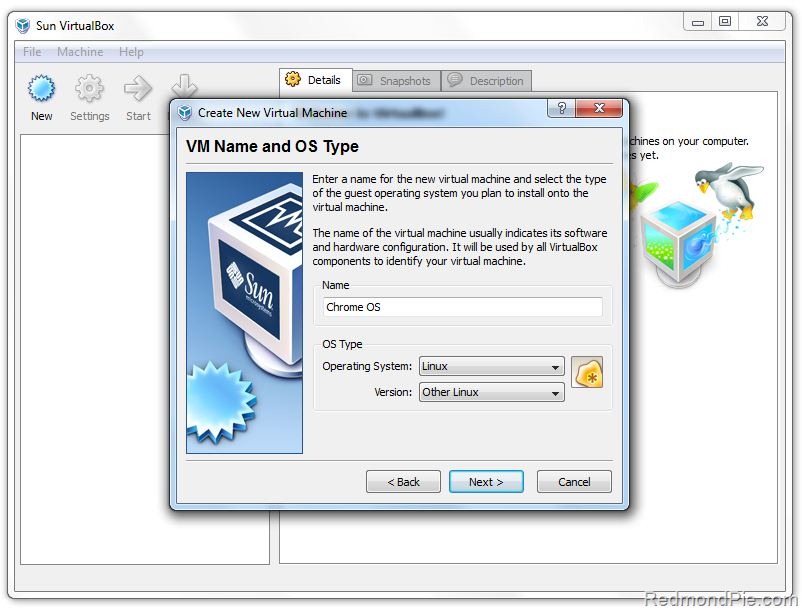
Step 4: Name your VM “Chrome OS” and select “Linux” from Operating System dropdown menu, and “Other Linux” from Version dropdown menu.

Chrome OS

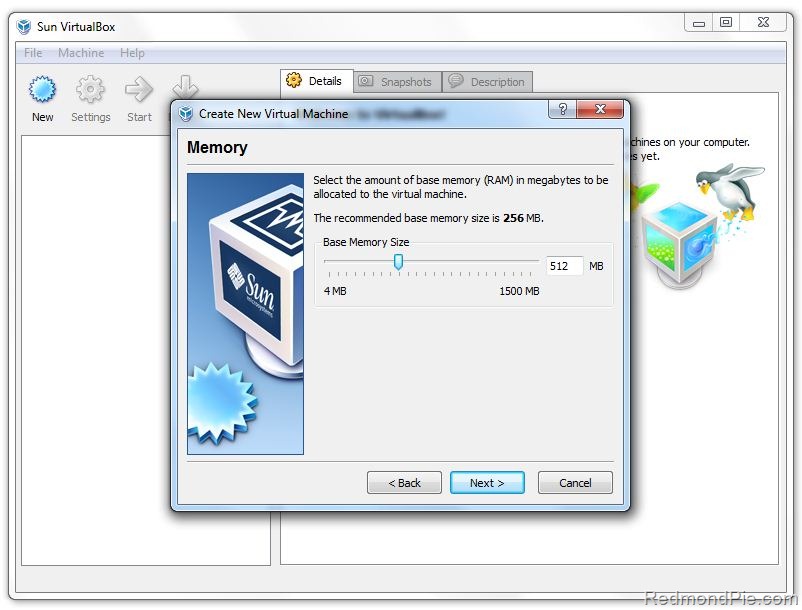
Step 5: Assign your VM some Ram in megabytes. For this tutorial, I have allotted Chrome OS VM 512 MB of Ram.

Chrome OS

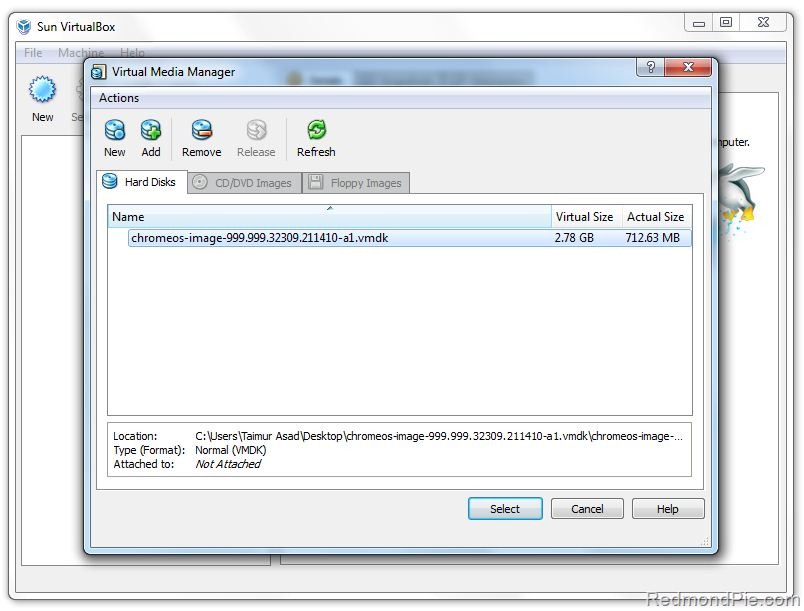
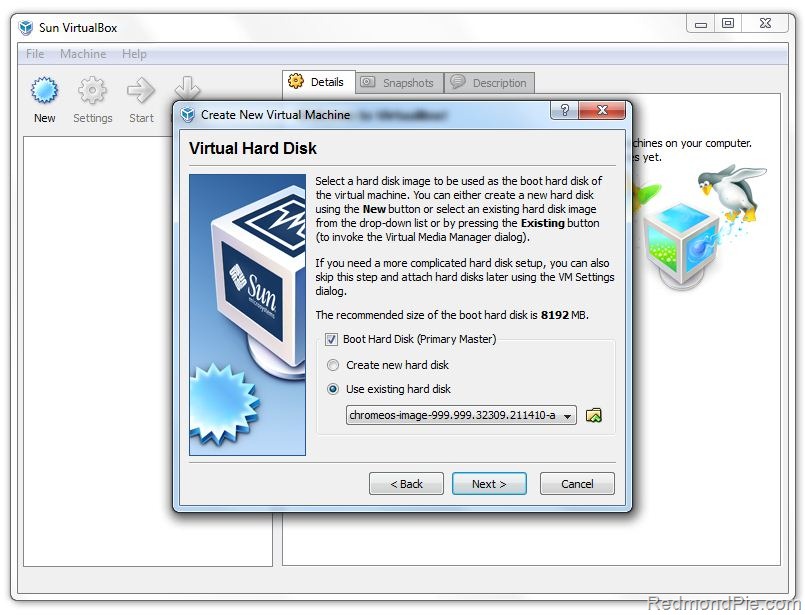
Step 6: Now Select “use existing hard disk” option and select the .vmdk file of Chrome OS that you downloaded in Step 2.

Chrome OS Chrome OSStep 7: Click Next and finish the wizard.

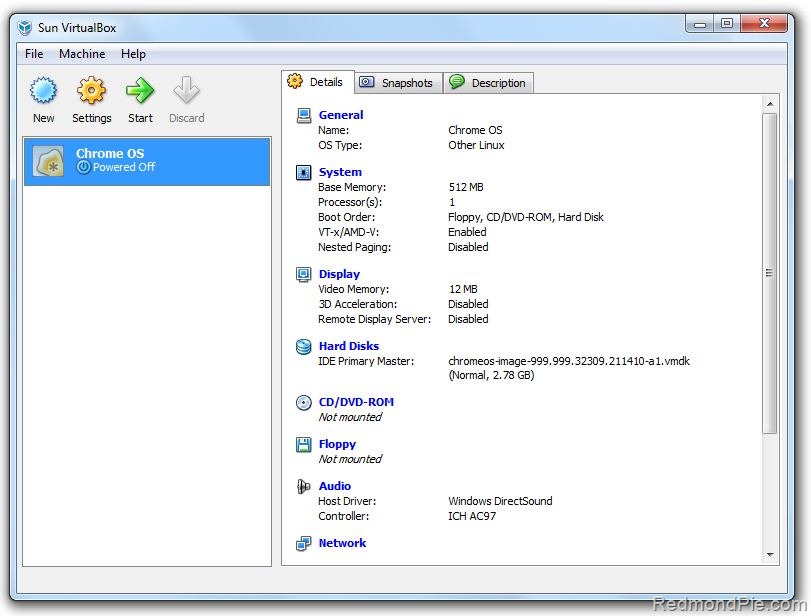
That’s it! your final VM setup should look something like this:

Chrome OS Now simply click on the green colored “Start” button as seen in the screenshot above and wait for about 7 seconds for Chrome OS to boot up. You will need a valid Google ID to login into the operating system.

[Source]


And here you a video tutorial by Paul Miller using [VMware Fusion] :


Bookmark and Share

Thursday, October 15, 2009

How to make an “EXE” installation file

iExpressWe all download software from the Internet or install applications off a CD or some other media. While some companies decide to just distribute their applications packaged in zip files, most of them use some form of an installation program, which is usually an EXE – Executable file – that runs you through a series of steps to install the said software on your machine.

Have you ever wondered how those EXE files are created ?

Well, there are a lot of software that can help you create install packages to distribute your software, and today we’ll walk you through using one that has been been there on your Windows system all along. This unassuming utility is called iExpress and is (probably) the easiest utility you’ll ever find to make an EXE file for your software.

So, if you’ve ever wondered how those installation programs are created, how the “magic” happens during the installation wizard and how a simple single executable spits out hundreds of real useable program files, we’ll answer that question for you today.


Since Microsoft doesn’t create an icon for iExpress in the Programs menu, we’ll have to run it manually. If you’re using Windows XP, go to the Start menu and click the Run button. In the dialogue box that pops up, type iexpress.exe and press Enter. If, like me, you use Windows Vista, just click the Start menu and start typing iexpress and you’ll see the icon popup in the search results.

how to make exe

iExpress runs as a simple wizard and will ask you a couple of questions and based on your choices will generate the installer for you. The first question that you have to answer is if you want to create a new Installer or open an existing one. Since, this is (presumably) your first time using iexpress, we’ll select the first option and click Next.

how to make exe

The next screen will ask you the type of package you want it to create.

iExpress can create a package that runs a command after it unpacks all files to a temporary location, or only extract the files to a location that the user specifies. The first option is useful if you want to, for example, run a script to make changes to the registry before the user runs your program for the first time.

There is a third option to create compressed files only but that is only applicable if you’re distributing Active-X controls. iExpress displays a handy description below each option so you can read that if you’re still not sure which about which option to select.

how to make exe file

The next step is to give a name to the package that you’ll create. Enter the name in the text box and move to the next screen.

make a exe a window

This step will let you display a confirmation message to the user installing the application. If you want to display a message to your user asking for confirmation if he/she wants to go ahead with the installation, then type in a message in the text box provided and when you’re done click Next.

make a exe a window

Now, you will be able to select a license agreement which the installer will ask the user to adhere to. If you have a license agreement for your application, then type it in a text file and provide that here or else select the “Do not display a license” option and move on.

make a exe a window

This is where you actually select the files that will be installed by the installer that you’re creating. You can select as many files as you want here. Add files to the list by clicking on the Add button.

make exe file

Now, you can safely move forward a few steps and keep clicking on the next button till you come across the Package name and options screen. This is where you select a name for the actual EXE file that gets generated and decide whether you want to hide the extraction process from your users or let them see all the gory details. You can also generate a log files for the installation process.

make exe file

In the next step you can choose to create what iExpress calls a Self Extraction Directive file. This is needed if you want to later change some of the options that you chose and create another modified installer. Since, we don’t want that right now, we’ll choose not to create an SED file.

That’s it. iExpress will now go ahead and create an EXE file for you. Wasn’t that easy?

What other tools do you prefer to make exe files?


(By) Sharninder is a programmer, blogger and a geek making a living writing software to change the world. Join him on his travels around the tech 'o' sphere at Geeky Ninja
Bookmark and Share

Tuesday, October 13, 2009

How to print directory contents in Windows without applications

It’s one of those simple tasks that suddenly come upon us and we have no idea how to go about it. I had a whole fat folder filled with ebooks and someone casually asked me to send over a list. A list… that sounds really simple.

Did I forget to mention that the ebook folder was really filled with a lot of titles? It must have had almost 120 ebooks. I almost started manually typing the names when I figured that there must be a less laborious way to print out the directory contents.

Printing directory contents seems so mundane an activity that we forget it has very useful applications in our day to day usage. Especially in a professional setting where you might be told to send over a list of so and so files about such and such subject. In a jiffy. If it’s a small bunch of files then manually writing it down is not a problem. But what if it numbers a few dozen?

Instead of searching for a poor flunky to lend a hand, you can just tap a few keys and get it for yourself. All in double quick time with a few methods.

So let’s work on not one but five ways to print folder and directory contents and get that file list.

Command DOS

This is one command line that’s easy to remember and easy to do.

  1. Start the command prompt from Run – cmd. Type cd and the directory path of the folder you want to list.
  2. Type dir > print.txt
  3. Press Enter and exit from the DOS window.
  4. Open the folder you wanted the listed file content for and you should see a print.txt file. This is a simple Notepad file that can be copied or printed easily.

Setting A Contextual Menu

A print directory feature can be added to the right-click context menu for a folder. This sends the folder content list directly to the printer. For Windows XP follow these steps:

  1. Create a batch file in Notepad by pasting the following text

    @echo off
    dir %1 /-p /o:gn > “%temp%\Listing”
    start /w notepad /p “%temp%\Listing”
    del “%temp%\Listing”
    exit

  2. Save the file as %windir%\Printdir.bat
  3. Open Control Panel – Folder Options. Click on the File Types tab. Under the registered file types select the entry for Folder. Click on Advanced.print directory contents
  4. In the Edit File Type box, click on New. In the Action box, type Print Directory Listing. In the Application used to perform action box, type printdir.bat.2_Edit-File-Type
  5. Click on OK and close all boxes.
  6. Right-click on any folder and use the Print Directory Listing command to send the list to the printer.print all files inside directory

The above instructions and those for Windows Vista can also be found on the Microsoft Help and Support page.

Bookmark and Share

How to get statistics of your website using Google Analytics

Screen-shot-2009-09-27-at-17.20.32 There’s no debate whether or not our online activities are tracked, they most surely are. It’s not even a single party that keeps the score; your ISP, website owners, advertisers and NSA know the reason you switched to Private Browsing Mode yesterday at 22:12. If the cool kids are doing it, why shouldn’t you? Here’s how you can get to ‘know’ your website’s visitors IP address.

google analytics visitor ip


The first thing you want to do is go about creating an account over at Google Analytics. Why would I want to do that, you ask? Well, in my own experience, the service provides a tremendous amount of data, has a great user interface, is easy to install on any website, and, more importantly, is completely free of charge. It’s undoubtedly the easiest, cheapest and fast way of getting your visitors’ information, including their IP address or hostname.

If you already use any of the Google services, you can easily sign in with your existing credentials. The process of setting up your website with Google couldn’t be easier. You will be prompted to create a profile. A profile is basically a metaphor for a folder, where you can keep track of various aspects of your websites’ traffic. Each different domain will have its own separate profile. Select ‘Add Profile for a new domain‘ and enter your domain’s address and timezone.

The next page will generate a bit of code that you’ll have to insert in the header or footer of your website’s template. You have to do this because you want to keep track of visitors across your website, not just the homepage. This way, no matter where the user navigates to (eg. mysite.com/secondpage), you will know about the total time spent, the pageview/unique visitor ratio and exit funnels.

google analytics visitor ip

How you add the code to your website varies dramatically – and requires the knowledge to manually access and edit your theme files. You probably set your own website up, so you must know how to do this. If you don’t know how, don’t panic, and instead search Google for[service type] + edit theme OR Google Analytics‘. For example, ‘Wordpress edit theme Google Analytics‘. There are plenty of guides out there that will show you how to add this bit of code.

In the latest version of the self-hosted Wordpress, I only need to click on ‘Appearance‘ in the sidebar, ‘Editor‘ and choose from the right side list ‘footer.php‘. As a golden rule, insert the code before the last ‘</body></html>’ tags. They’ve also got a lot of support material over at the help page, which you might want to check out if in doubt.

visitor ip address

Twenty-four hours later and you’ve got the first taste of website statistics. Be prepared to spend the rest of the evening looking at various graphs of source locations, connection speed, ISP, browser capabilities, operating systems, browsers, time on site and more. After that, the only problem that could arise is that you’ll wish you could install a tracking code in your girlfriend, in order to be plot the ‘visitor loyalty’ chart.

visitor ip address

If you want to view individual IP addresses of your website’s visitors you need to click on Visitors>Network Properties>Hostnames, from the right sidebar, as illustrated in the screenshot above. There you will see a list of IP addresses and how many times each has visited the website. This can prove useful if your site is being attacked (defaced, DDOS-ed, etc.), as you can determine who your attacker is, or at least his proxy.

More views and information is accessible through the sidebar on the right: Visitors, Traffic Sources, Content and Goals. They’re pretty much self explanatory. The Visitors tab will contain information about – you’ve guessed it, the people who accessed your site. Traffic sources will identify who sent you traffic, be it a search engine, a referral or just organic. The Content tab will dutifully tell you how each page is doing when it comes to attracting eyeballs. Finally, Goals is used by e-commerce folks and companies to measure conversions, a fancy word for a sell.


(By) Sharninder is a programmer, blogger and a geek making a living writing software to change the world. Join him on his travels around the tech 'o' sphere at Geeky Ninja

Bookmark and Share

How To Make Your Own Windows Live CD

Live CDs as you know allow you to boot your computer from a CD-ROM and performs various functions on your system. Such Live CDs are excellent for recovering data, fixing problems or to have a custom desktop at your disposal when you are not at your own computer.

While the Live CDs are common place in the Linux world, it’s not often that you hear about a Windows Live CD.

Here today we are going to show you how to make custom Windows Live CD

Tools Required

  • Bart PE
  • Your Windows installation CD

Steps

  1. Download and install the latest version of Bart PE. Fire up the PE Builder. This is the main screen that appears:
  2. pe builder - create windows live cd

  3. All additional functionality that you want to add is done by means of plug-ins. There are loads of them to choose from. Plug-ins are nothing but a way to add additional software to your Live CD. You can visit the Bart PE plug-in repository here.
  4. For our purposes we require a special plug-in called Windows XPE, which gives us a way to boot into a GUI environment similar to Windows as opposed to the usual command line interface. You are free to choose any other plug-ins for additional functionality that you want to add. There are plug-ins for disc recovery, office work, backups, disk imaging and so on.
  5. Now insert your Windows Installation disc and point PE Builder to the CD/DVD drive containing the Windows installation disc or the location of the copied files (great if you have a laptop and the i386 folder containing the files).
  6. Click on the plug-ins button at the bottom. This allows you to add more software and tweak the existing software/plug-ins. If you get an error here, chances are that the path you provided in source is not correct.
  7. create windows live cd

  8. Click ‘add’ and browse to the location where you stored the Windows XPE plug-in to add it. Since we are using the XPE plug-in you can safely disable the Nu2shell, PENETCFG and A43 plugins since these offer functionality that is already included with the XPE plug-in.
  9. Click ‘close’. You can now directly burn a disc or save an ISO file for testing which you can burn later. Click ‘build’ and PE builder will get to work.
  10. If the build process completes without any errors, you have made yourself a Live CD.

Mine completed in just under 2 minutes without any errors and amounted to 270 MB with Windows XPE plug-in and 154 MB without it. Here are the screen shots from my LiveCD which I tested in VirtualBox:

There are additional hacks that you can use to customize the text that appears when loading, the wallpaper and other things. However, that required editing some files and is a little cumbersome. In any case, with or without the visual customizations, you now have a fully functional Live CD with the tools you want according to your specific requirements. There are numerous other possibilities that you can explore with such a tool. For example you can create a Live DVD with all your favorite programs and documents.


(By) Varun Kashyap - Programmer, Blogger and Tech Enthusiast, who tweets @VarunKashyap and blogs about tips, tricks and latest on the web at TechCrazy Blog

Bookmark and Share

Create A Virtual Machine Clone of Your Existing Hard Drive [Windows]

As many of you know, with virtualization you can run an operating system within another. There are plenty of reasons why you would want to do that: if you are a developer you might want to see how your application behaves on different operating systems; you can test out software, products and suspicious files in an isolated environment without damaging your host operating system.

There are various software available for creating and running virtual machine image. Microsoft’s Virtual PC, VMware, and Sun Microsystems’ VirtualBox to mention a few. Usually, there are several steps you would need to follow in order to create a virtual machine. These include creating a virtual hard disk and then installing the required operating system on the virtual hard disk.

Recently, Microsoft-owned Sysinternals released a utility that would be useful for easily creating a virtual machine image from your existing hard drive contents. This can be very useful if you have one of your computers at home or work set up for a particular task and you want to access all the same tools and software temporarily from your laptop.

The tool is aptly called Disk2vhd. Its a small download and doesn’t require installation. Just fire up the application with administrator rights and you are good to go. It will show you various hard disks and partitions on your computer. Select the one you would like turned into virtual hard disks, hit create and the applications goes about doing its thing.

In the ‘Space Required’ column, Disk2vhd shows you the amount of hard disk space you will need to have in order to create the virtual hard disk from your computer’s partitions. The process could take really long so you might as well go out grab something to eat/drink and come back — and if you are lucky, it would have created the virtual hard disk. The time it requires would depend on the size of the disk you are trying to turn into a virtual hard disk. Generally be prepared to wait for quite a while.

Once the VHD file is created, you can use one of the virtualization apps mentioned above to run a virtual machine off the hard disk image you’ve just created. All three support VHD files. Here are the details in case you want to look into them.

In addition, Vista (and now Windows 7) users can mount .vhd files as regular hard disks as well. Follow these steps:

  • Right click on My Computer icon and choose ‘Manage’.
  • Listed under Storage, choose ‘Disk Management’.

  • From the Action menu, choose Attach VHD, browse to the location of the VHD file, check read-only if you want to safeguard the contents against modification and click OK.

  • You will now be able to access it like a regular hard disk.

Disk2vhd is a great tool that lets you create a virtual machine image from your existing hard disk setup. The tool does all this from within the operating system without requiring you to boot from a CD. You can easily take your current computer and run it as a virtual machine on another computer. One thing you would require is free hard disk space.

What do you think of it? Do you know about similar tools? Share them with everyone in the comments.

(By) Varun Kashyap - Programmer, Blogger and Tech Enthusiast, who tweets @VarunKashyap and blogs about tips, tricks and latest on the web at TechCrazy Blog

Bookmark and Share

Tuesday, August 25, 2009

Remove the Blogger banner

To hide the Blogger Navbar :
  1. Log in to blogger
  2. On your Dashboard, select Layout. This will take you to the Template tab. Click Edit HTML. Under the Edit Template section you will see you blog's HTML.
  3. Paste the CSS definition in the top of the template code:

    #navbar {
    display: none !important;
    }
Bookmark and Share

How to Submit Your Blog Sitemap to Google Through Google Webmaster Tools

Blogger blogs are frequently indexed by Google, however if you've just created a new blog and you want to make sure that it is is indexed by Google, you can use Google Webmaster Tools.


Google webmaster tools setup guide :

Google Webmaster Tools provides you with detailed reports about your pages' visibility on Google. To get started, simply add and verify your site and you'll start to see information right away.

  1. Go to the following address and sign in with your Google account:
    http://www.google.com/webmasters/
  2. Click on "Add a Site" button to add your blog.
  3. A small box will appear, enter your blog URL in it.
  4. Now you need to proof that you really are the owner of this blog, for this you need to verify.
  5. Chose "Meta Tag" as verification method and copy the tag which looks something like this:

    <meta name="verify-v1" content="z6MLWEMxLvMFcoVNvGPKOMvAn1oJBKem+eTEpZ1F/DU=">
  6. Now come back to your Blogger account and go to "Layout" -> "Edit HTML" section.
  7. Paste the Meta Tag right after tag, the tag is in the start of your code just after a few lines.
  8. Once you've pasted the code, click on "Save Template" button to save your changes.
    • Warning: You might see an error like this:
      Your template could not be parsed as it is not well-formed. Please make sure all XML elements are closed properly.
      XML error message: The element type "meta" must be terminated by the matching end-tag "".
      Don't worry if you see such error, simply add / before > and save again.
    • Tip: Optionally, you can also add the following tag, so that when Google crawls your blog, it will completely index your site and follow all links in your blog.

      <meta name="robots" content="INDEX, FOLLOW">
  9. Now again go to you "Webmaster Tools" account and click on "verify" button to complete verification process.
  10. If you've done everything right, you'll see that you're site is verified now.
    • Warning: Don't remove the Meta Tag after verification process, it might be checked again.
  11. Expand the option "Site configuration" which is on the left side.
  12. Click on "Sitemaps" and then click on "Submit a Sitemap" button and a small window will appear which will already have http://YOURBLOGNAME.blogspot.com/ and in the empty area of the box, you'll type "rss.xml". Final result would be

You're done now, this is the best possible way to get fully indexed by Google and of course if you're good with Google then you'll get a lot of traffic.
Bookmark and Share

Monday, August 24, 2009

Add favicon on Blogger

What is a favicon?
A favicon (short for favorites icon), also known as a website icon, shortcut icon, url icon, or bookmark icon is a 16x16 (or 32x32) pixel square icon associated with a particular website or webpage.

Now how to do it on blogger :
Go to Layout | Edit HTML and find . Paste the following code right after but before tag. It should look like this:


</b:skin>
<link href='URL of .ico file' rel='shortcut icon' type='image/x-icon'/>
<link href='URL of animated .gif file' rel='icon' type='image/gif'/>
</head>


Remember: Here we use two files (.ico & .gif) because old internet browsers like Internet Explorer cannot display an animated favicon so we need to add a .ico file for this purpose.

Note: You can use a 32x32 .ico or .gif image file.
Bookmark and Share

Saturday, August 8, 2009

How to Change Font/Background Color in Adobe Reader

Adobe PDF documents come in a variety of designs which include an assortment of colored texts. For those with vision problems, reading lighter colored fonts can be difficult. In this article, you'll discover how you can easily enhance color with a few easy steps.
  1. Open Adobe Reader. Click on "Edit" from the top menu, then click on "Preferences."
  2. Choose "Accessibility" from the "Preferences" menu list on the left.
  3. Check the box beside "Replace Document Colors." This opens the other options for editing.
  4. Select "Custom Color." At this point you can modify the background color as well as the font color. To change font color, click on the color palette box beside "Document Text."
  5. Select the color from the small palette box. You can also choose "Other Color" to further customize your font color. Once you have chosen your color and clicked on it, you will be taken back to the main "Preferences" screen.
  6. Click "OK" at the bottom of the "Preferences" window, and the document will update with your chosen font color.
Bookmark and Share

Thursday, July 30, 2009

Using SyntaxHighlighter 2.0 on Blogger

First we load the latest .js and .css files of SyntaxHighlighter by adding this code to your HTML template page :

<!-- Loading Styles -->
<link href='http://alexgorbatchev.com/pub/sh/current/styles/shCore.css' rel='stylesheet' type='text/css'/>
<link href='http://alexgorbatchev.com/pub/sh/current/styles/shThemeDefault.css' rel='stylesheet' type='text/css'/>

<!-- Loading the core JS -->
<script language='javascript' src='http://alexgorbatchev.com/pub/sh/current/scripts/shCore.js'/>

<!-- Loading the Highlighters -->
<script language='javascript' src='http://alexgorbatchev.com/pub/sh/current/scripts/shBrushJScript.js'/>
<!-- Add more Highlighters here if you like ... -->

Then we add this script because of the removal of the <br> tags in the code blocks that are automatically inserted by the Blogger rendering engine in place of all line breaks (\n).

<script type='text/javascript'>
//<![CDATA[
function FindTagsByName(container, className, tagName)
{
var elements = document.getElementsByTagName(tagName);
for (var i = 0; i < elements.length; i++)
{
var tagClassName = elements[i].className;
if (tagClassName != null && tagClassName.search(className) == 0)
{
container.push(elements[i]);
}
}
}

var elements = [];
FindTagsByName(elements, "brush:", "pre");
FindTagsByName(elements, "brush:", "textarea");

for(var i=0; i < elements.length; i++)
{
if(elements[i].nodeName.toUpperCase() == "TEXTAREA") {
var childNode = elements[i].childNodes[0];
var newNode = document.createTextNode(childNode.nodeValue.replace(/<br\s*\/?>/gi,'\n'));
elements[i].replaceChild(newNode, childNode);
}
else if(elements[i].nodeName.toUpperCase() == "PRE") {
brs = elements[i].getElementsByTagName("br");
for(var j = 0, brLength = brs.length; j < brLength; j++)
{
var newNode = document.createTextNode("\n");
elements[i].replaceChild(newNode, brs[0]);
}
}
}
SyntaxHighlighter.all();
//]]>
</script>
Bookmark and Share

Rounded corners with CSS and HTML generator

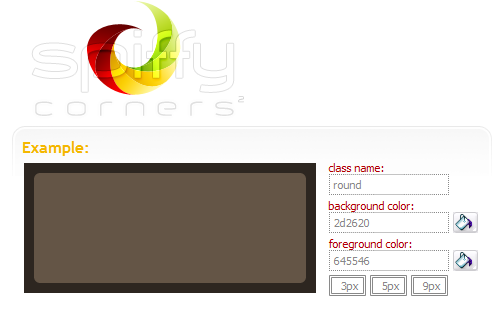
SpiffyCorners is a simple way to generate the CSS and HTML you need to create anti-aliased corners without using images or javascript.
Bookmark and Share

Wednesday, July 29, 2009

Browsershots

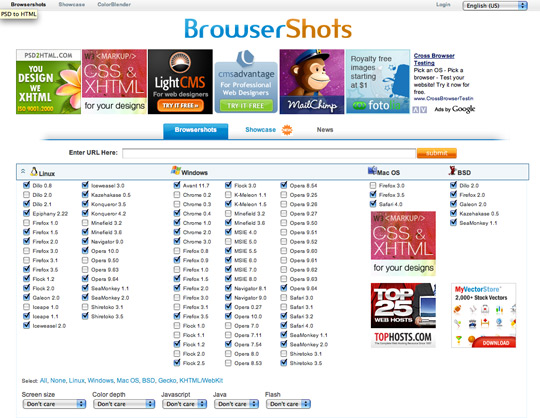
Browsershots makes screenshots of your web design in different browsers. It is a free open-source online service. When you submit your web address, it will be added to the job queue. A number of distributed computers will open your website in their browser. Then they will make screenshots and upload them to the central server here.

Bookmark and Share

Adobe BrowserLab

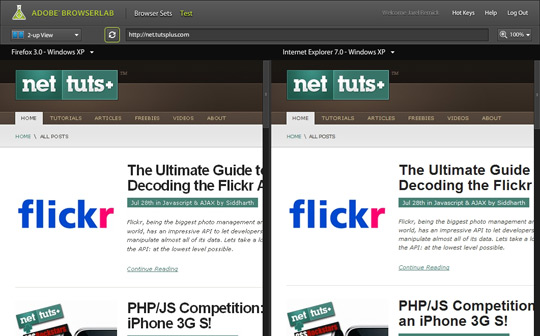
Adobe recently came out with a new service called BrowserLab which lets you view a snap shot of a website via URL in different browsers. It's fast, free and gives you a couple different viewing options to compare different browser versions.
Bookmark and Share

Firefox plugin: Web developer

The Web Developer extension adds a menu and a toolbar with various web developer tools.


Bookmark and Share

Monday, July 27, 2009

Bookmarklet: Firebug lite

Firebug is an extension for Firefox, but what happens when you need to test your pages in Internet Explorer, Opera, and Safari?

The solution is Firebug Lite, a JavaScript file you can insert into your pages to simulate some Firebug features in browsers that are not named "Firefox".

Firebug Lite creates the variable "firebug" and doesn't affect or interfere with HTML elements that aren't created by itself.

Screenshots:

IE
Opera
Safari
  • Firebug Lite as bookmarklet

Drag the following link to your bookmark toolbar and use Firebug Lite on any page:
Firebug Lite

Source: http://getfirebug.com/lite.html

Bookmark and Share

Friday, July 24, 2009

Firefox addon: Tamper Data

Use Tamperdata to view and modify HTTP/HTTPS headers and post parameters.
Trace and time http response/requests.
Security test web applications by modifying POST parameters.
Snapshots:


Bookmark and Share

Thursday, July 23, 2009

Test if jquery has loaded

To test if jquery has loaded, from any JavaScript console do:
if (jQuery) { alert("jQuery loaded"); }
Bookmark and Share

Wednesday, July 22, 2009

Firefox add-ons: Firebug

Firebug integrates with Firefox to put a wealth of development tools at your fingertips while you browse. You can edit, debug, and monitor CSS, HTML, and JavaScript live in any web page...

Snapshots:


Bookmark and Share